Downloading CSV files
Project-Wide CSV Downloads
To download a CSV file containing all labels for a project:
Step 1 Navigate to the 'Projects' tab, where you can view all projects and their labeling progress.
Step 2 Locate the 'Download CSV' button on the right side of the project table.
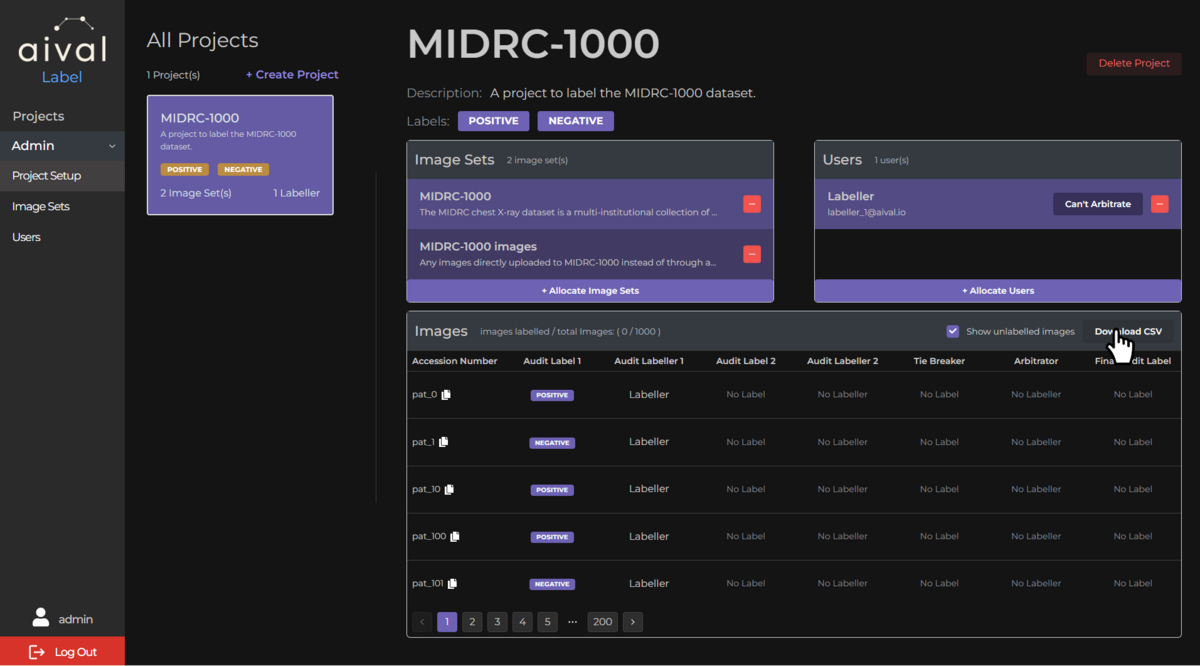
Step 3 The file will download automatically with the naming format: [Project_Name]_labels.csv
The CSV file contains:
- Accession Number
- Study UID
- Series UID
- Labels from all assigned labelers
Sample Project CSV
Below is an example of a project CSV showing two labeled studies from one labeler:
Project CSVs can be downloaded at any point during the labelling process.

User-Specific CSV Downloads
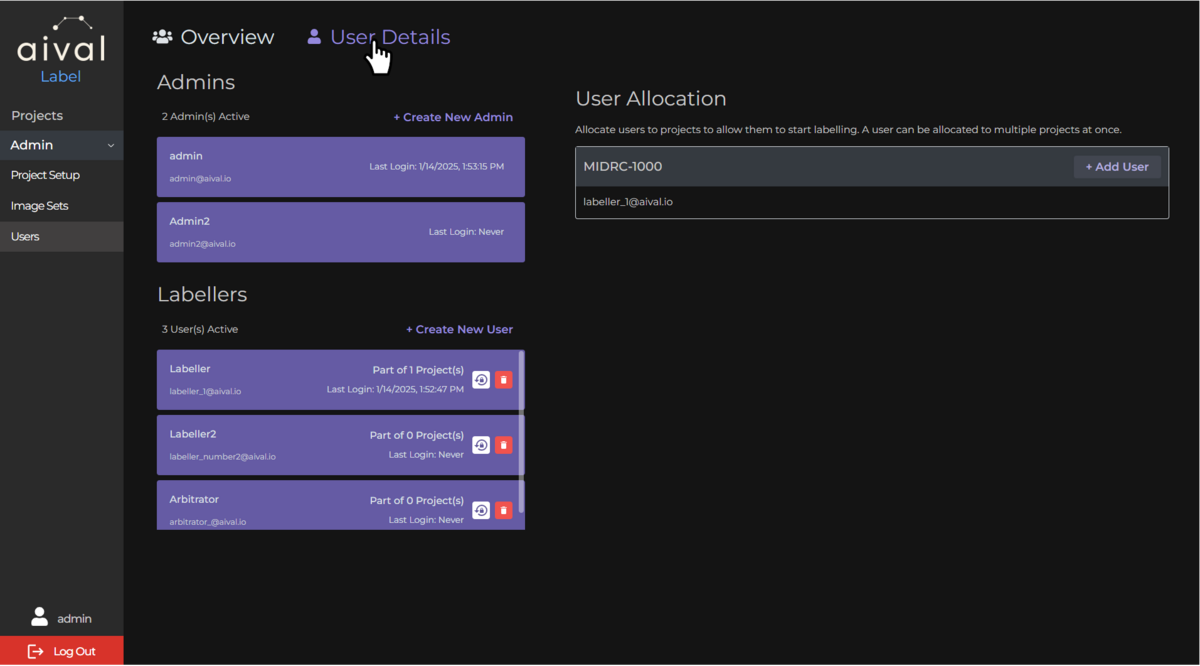
To download labels from a specific user:
Step 1 Navigate to the 'Users' tab, then to 'User Detail' to view user assignments and progress.
Step 2 Select the user from the list.
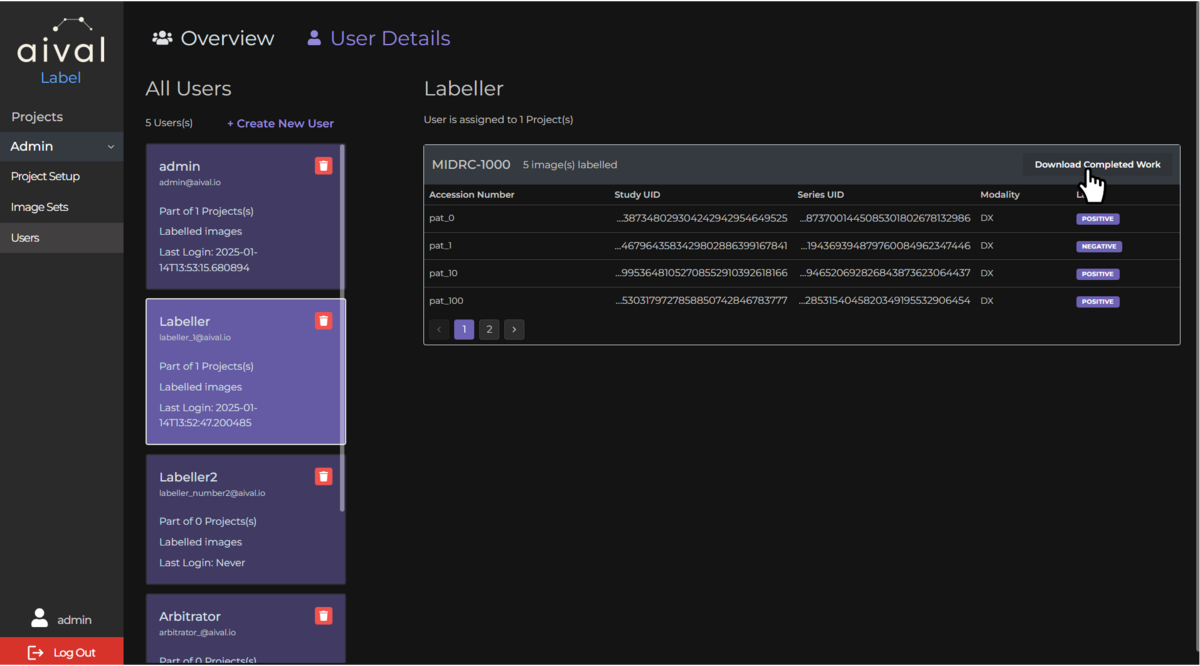
Step 3 Click the 'Download' button next to the relevant project.
Step 4 The file will download with the naming format: [username@email]_[Project_Name]_labels.csv
User-specific CSVs contain:
- Accession Number
- Study UID
- Series UID
- Labels for each study from the selected user
Sample User CSV
This example shows a user's CSV with several labelled studies:
